Step 1: Go to the Products/Items page from the lefthand menu
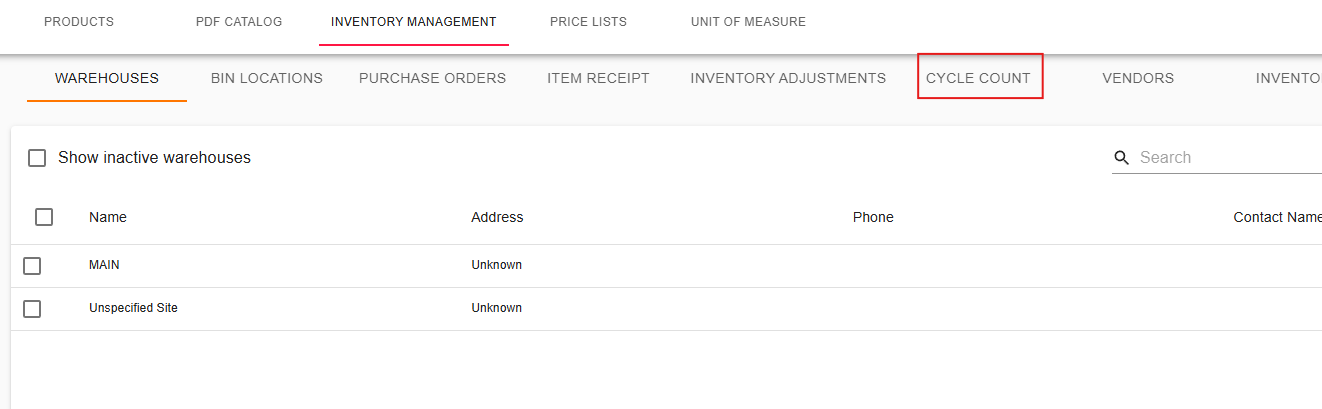
Step 2: Go to the Inventory Management tab from the menu options at the top.
Step 3: Next, go to Cycle Count.
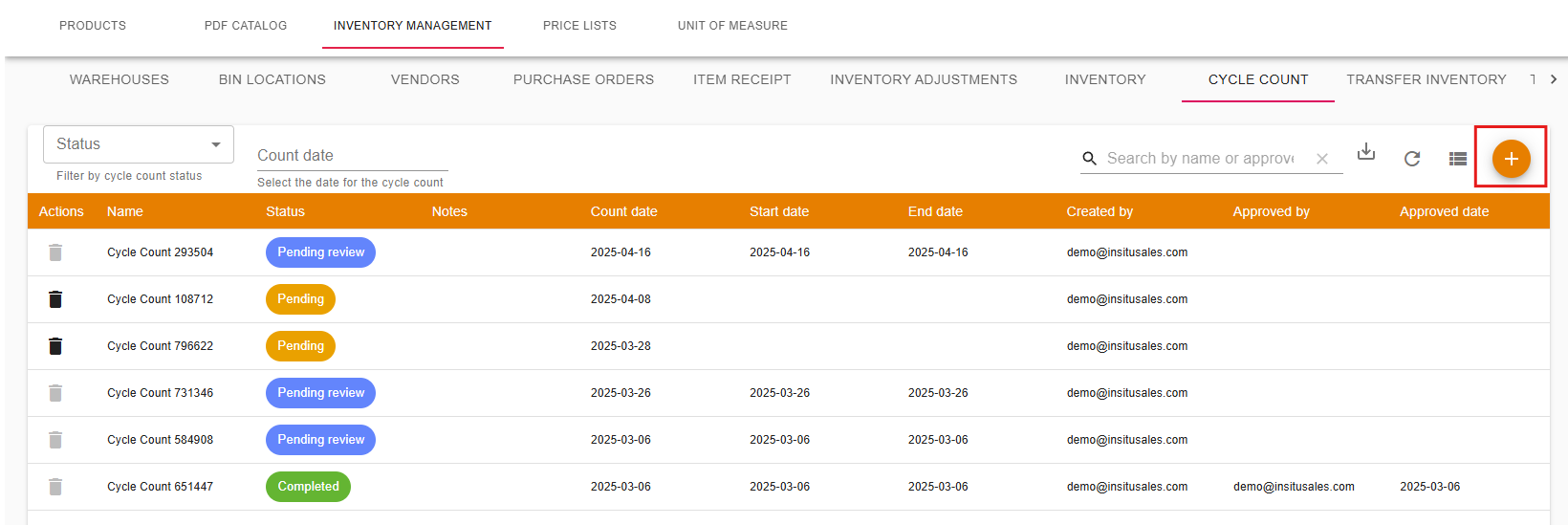
Step 4: Click on the orange button with the + sign to add a new cycle count.
Step 5: Enter the date for the Cycle Count, and what warehouse will be used.
Step 6: Click on the boxes to the left of each product's row to add that product to the count.
Step 7: When you're finished adding products, make sure to scroll back to the top using the outer movement bar. Afterwards, simply click the orange button marked Create Cycle Count, to the right of the product search bar.
This will result in producing a new list marked Pending, so you can follow your pickers' progress.
Completing The Cycle Count On The inSitu Inventory App
Step 1: Open the app and scroll to the section labeled Other Tasks, and then select Cycle Count.
Step 2: Here you will see a list of all inventory cycle counts assigned to the user's picker account. Tap anywhere on the Cycle Count to proceed.
Step 3: Enter values in manually with the plus and minus, or with the text bar.
Step 4: Once all products have been counted, click on the Send button at the bottom, and then on OK when the Success message pops up on screen.

Comments
0 comments
Please sign in to leave a comment.