Once an order is sent as either fully or partially picked from the app, an invoice and accompanying packaging slip can be created.
The Admin Side
Step 1: Go to the Order Fulfillment tab on the left.
Step 2: Find the completed picklist and choose Create Invoice.
Step 3: Choose Convert To Invoice.
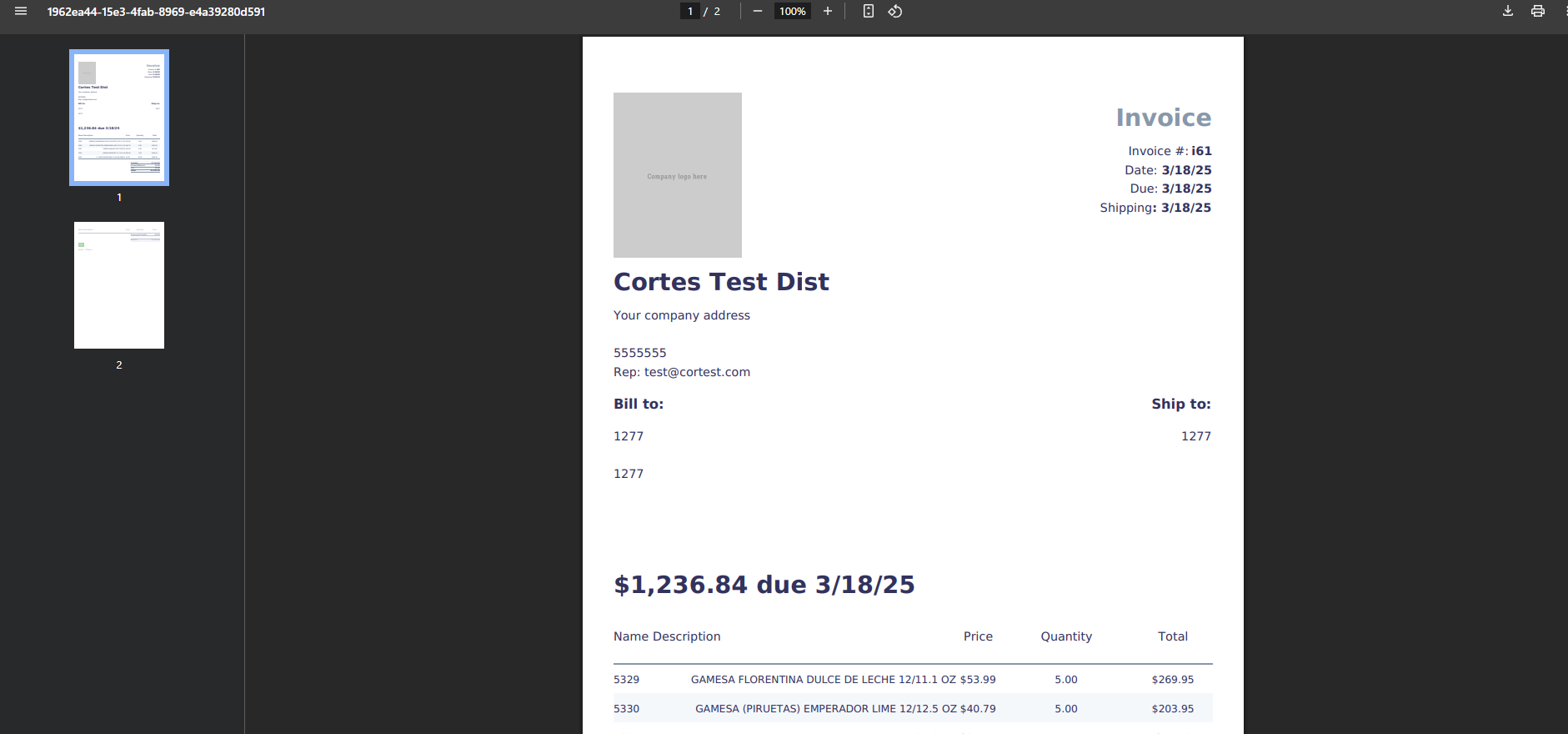
Step 4: At this time you can optionally choose to print or share the invoice as a PDF if desired.
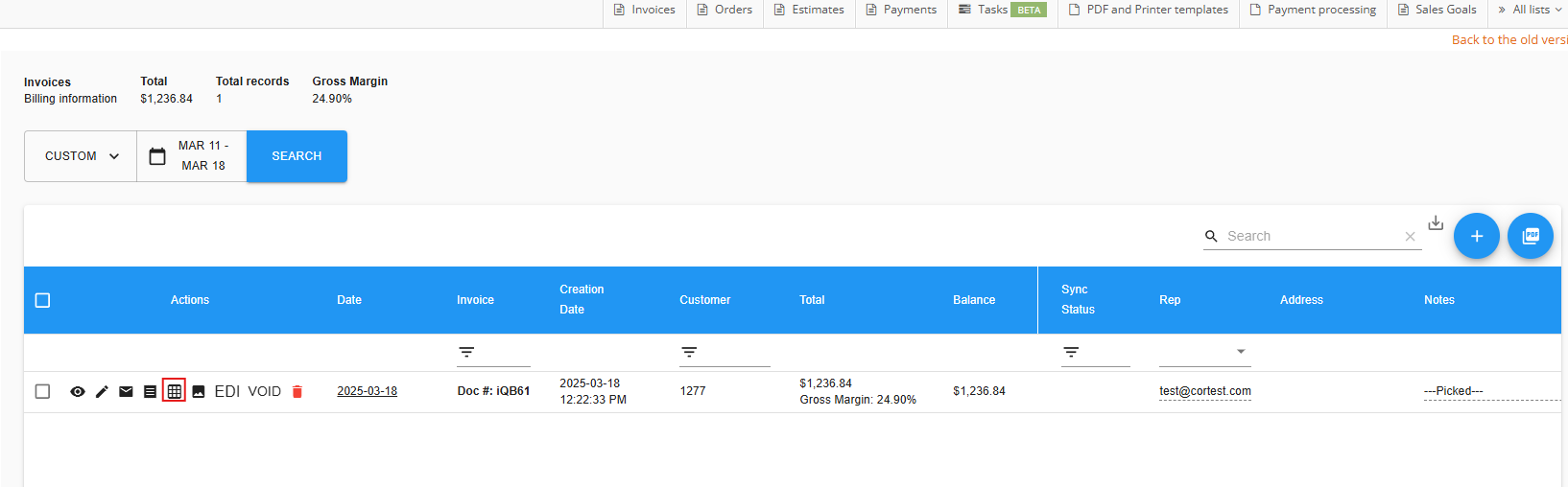
Step 5: Now if we go to the Sales Module's Invoicing section, we see the invoice marked Picked, and with the option to view the shipping label and packaging slip. Click on the Packaging Slip.
Step 6: here we have our finalized Packaging Slip
The Picker Side
Step 1: With the invoice created, find the completed picklist from your history of Past Picking Tasks
Step 2: Click on Packaging Slip on the bottom, and you will now have a mobile packaging slip that can either be printed on a Brother or Zebra printer, or shared as a PDF through email.

Comments
0 comments
Please sign in to leave a comment.