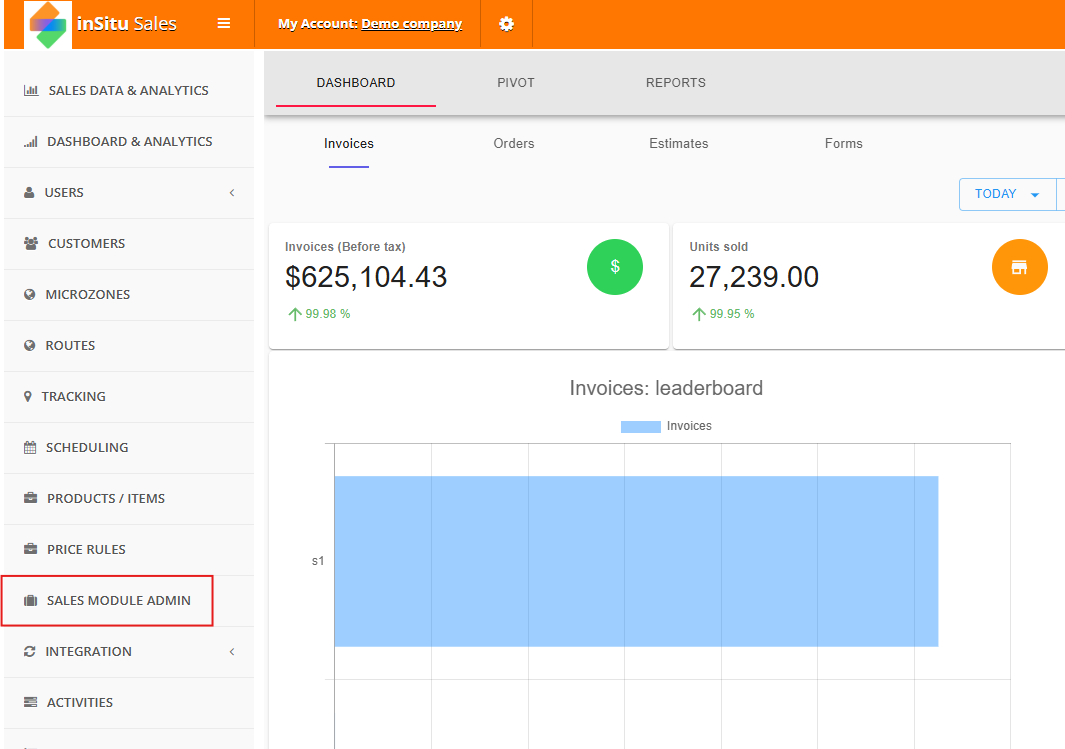
Step 1: From the Dashboard, go to the Sales Module Admin page.
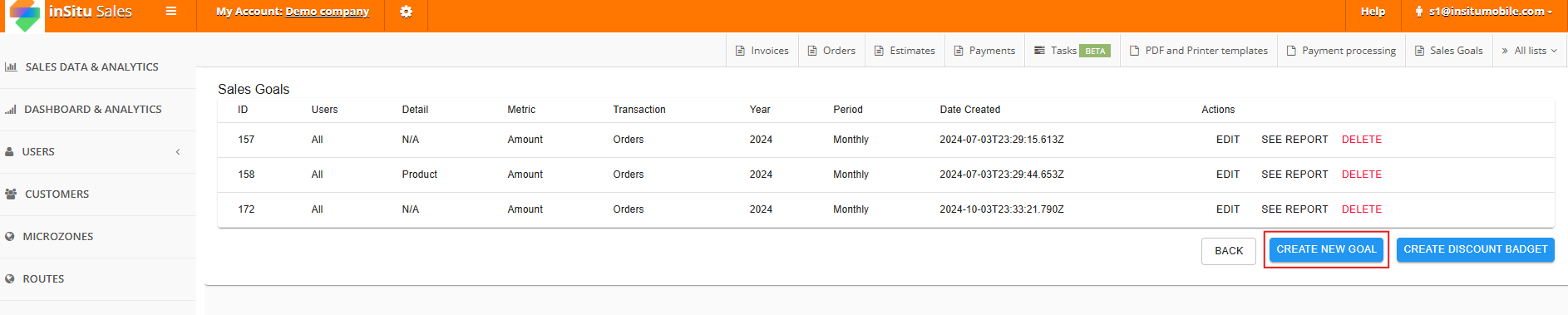
Step 2: Select Sales Goals from the available tabs on the righthand side of the screen.
Step 3: Here we can see any currently sales goals, with options to edit or delete. Click the button below the rows to Create A New Goal.
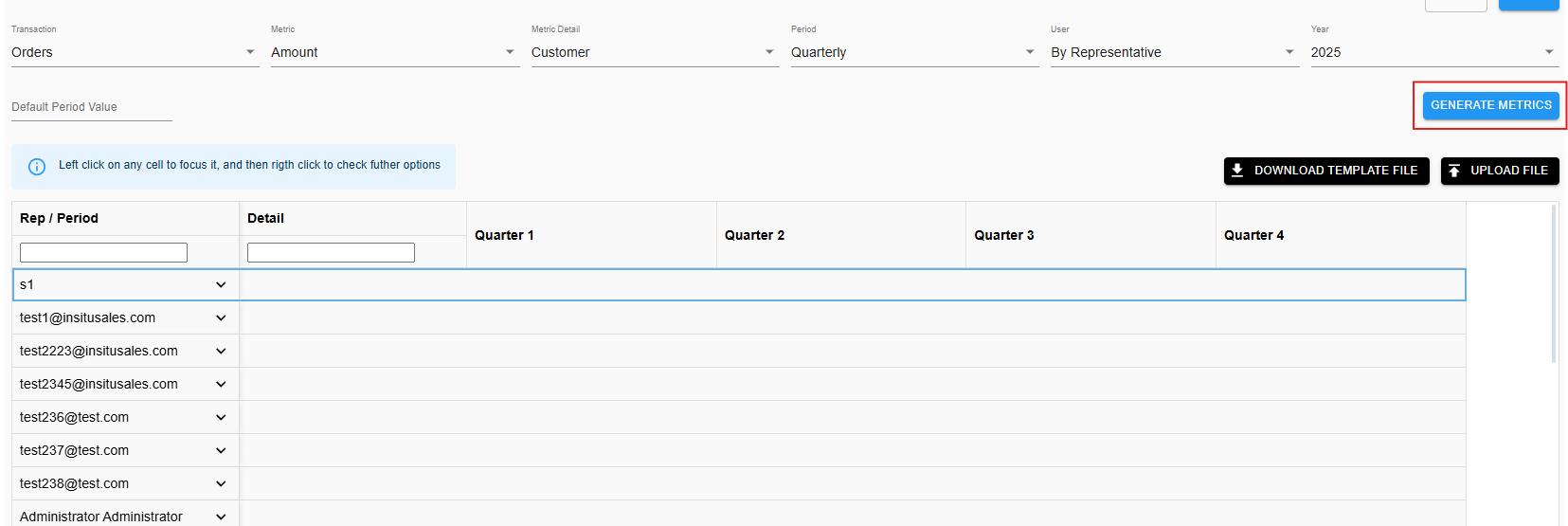
Step 4: Fill out the requested information to define the parameters of the sales goal.
Transaction Type: Sets whether the goal will track Invoices, Orders, Estimates, or Payments to record progress.
Metric: Informs the portal to track either profits if Amounts is chosen, or product quantity if Units is chosen.
Metric Detail: Tracks contributions to the goal from Categories/Subcategories, Brands, specific Products, or by Customers.
Period: States what measure of time the goal will collect data during before resetting.
User: Assign a collective goal to all users, or individual goals each rep must achieve.
Step 5: Click on Generate Metrics to review how data will be recorded and collected during this time.
In this example chose to record Customers and assigned the goal By Representative, and set the period timeline as Quarterly. This means it will record data by Customer accounts, and each rep will collect their own individually. Clicking on the first example rep, S1, lets us see each Customer assigned to them, and how data will be laid out each new Quarter.
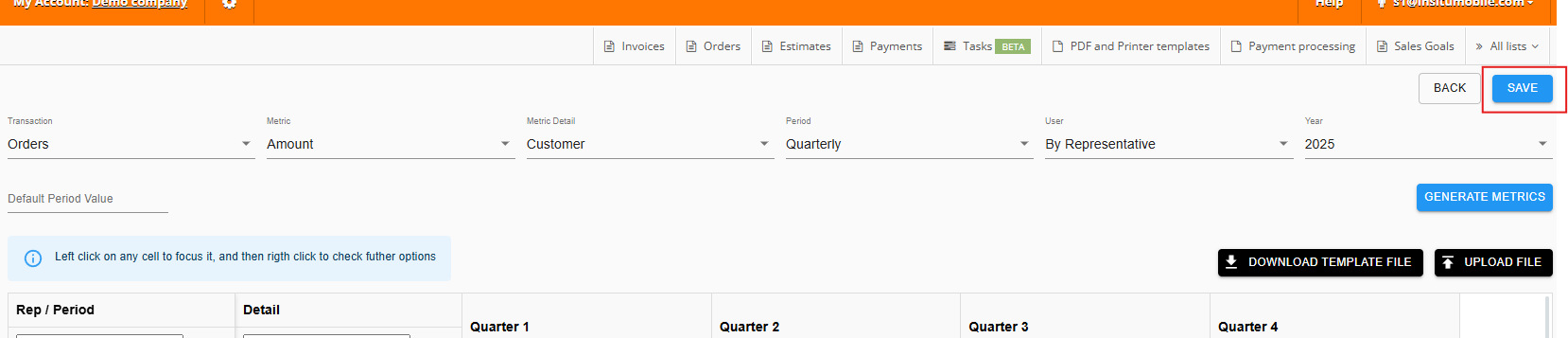
Step 6: Now just hit Save in the top right corner.



Comments
0 comments
Please sign in to leave a comment.