Note: For using the Mobile Forms as a rep, please click here Using Mobile Forms On The App
Step 1:
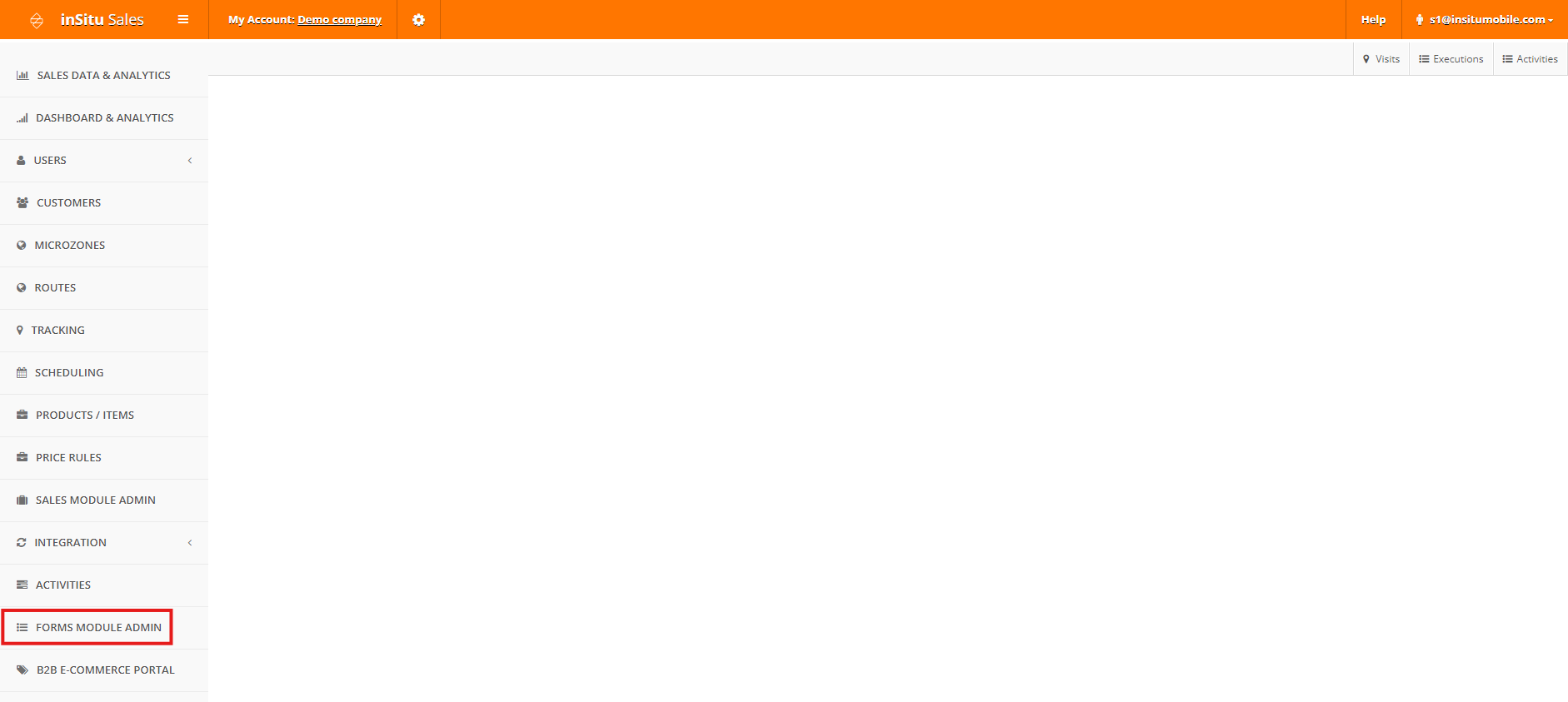
Click on the Forms Module Admin tab on the left.
Step 2:
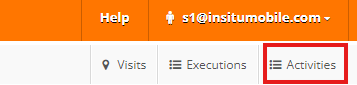
Click on the Activities option in the top right corner
Step 3:
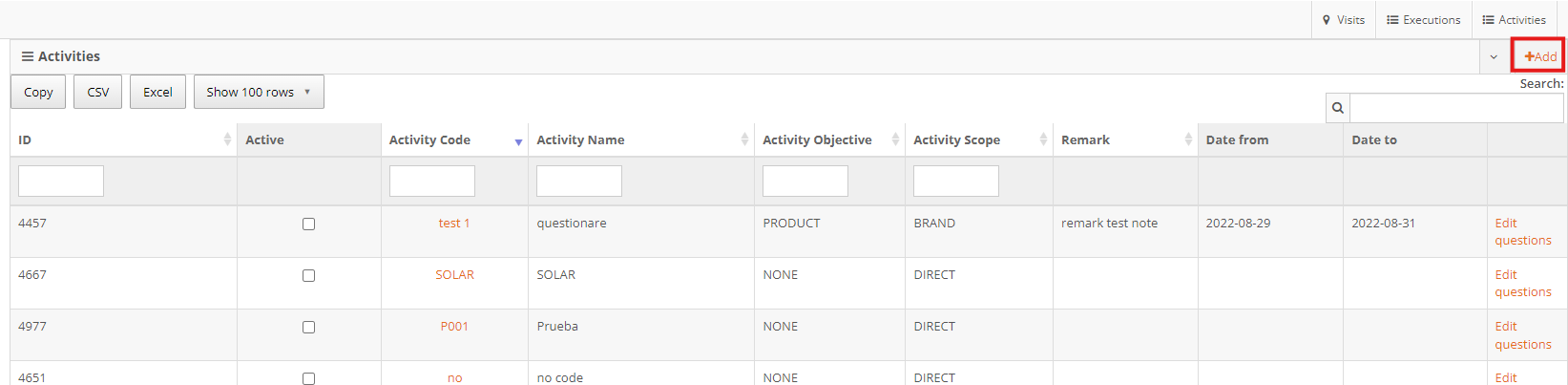
Now you'll see a list of all existing Forms for the account. Click on Add in the top right corner, just below the Activities option from the last step.
Step 4:
Set a name for the Activity Code, and Activity Name.

Reminder: this is how they will appear on the Activities Screen

Step 5:
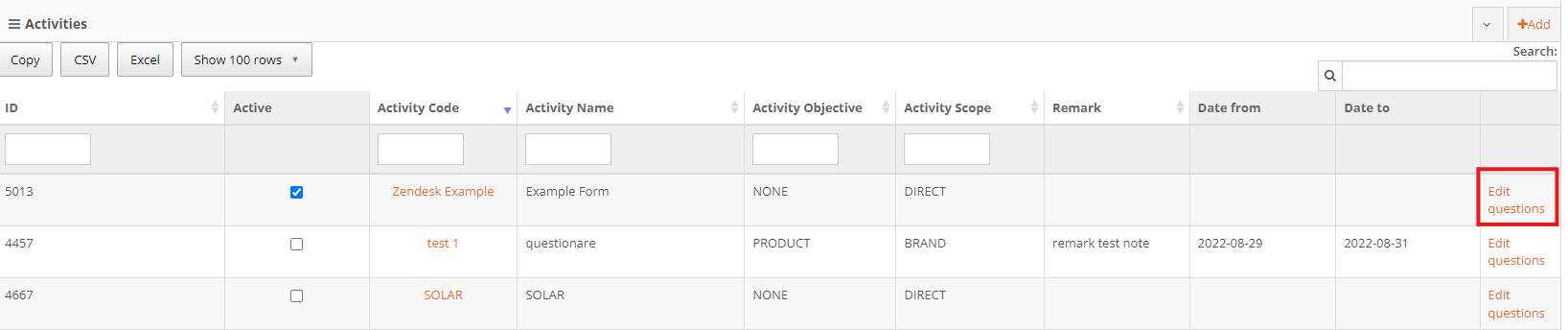
With the Activity created, click on Edit Questions on the far right of the row.
Step 6:
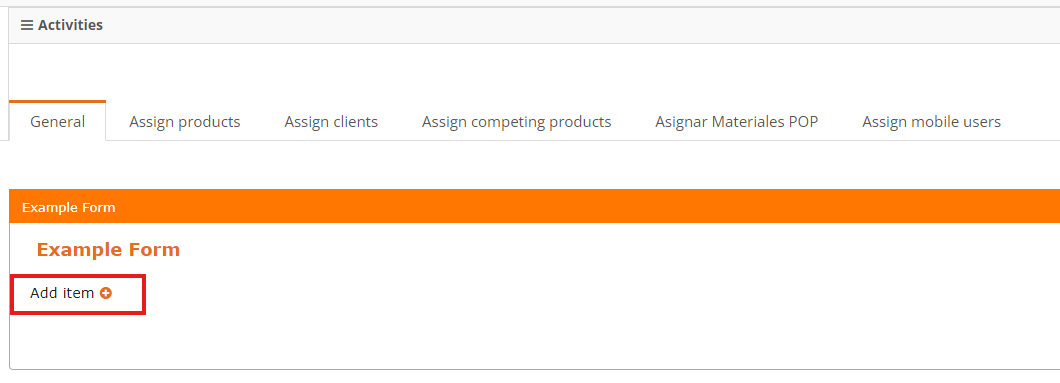
Click on the small plus sign labeled, Add Item, in the General tab to create your first section on the form.
Step 7:
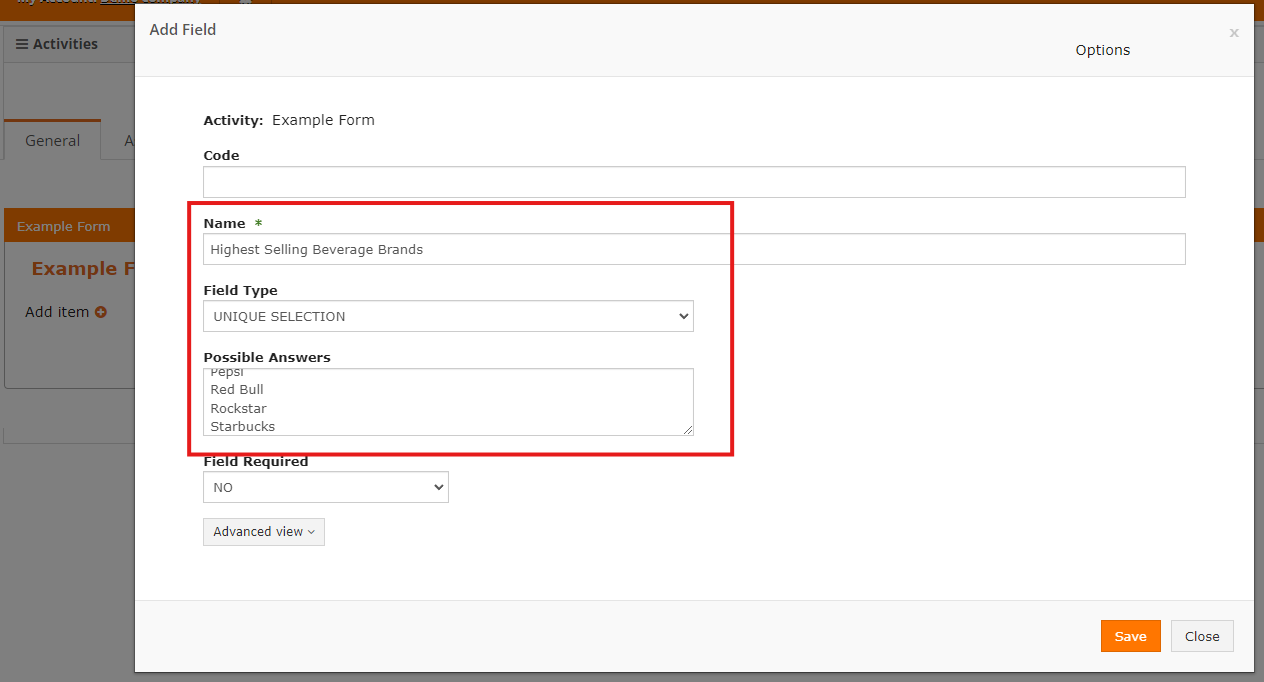
Fill out the Name, Field Type, and the Text Box below it. The text box will vary depending on what you chose for your field type. You can also opt to make the field optional or required.
When complete, hit Save.
Step 8:
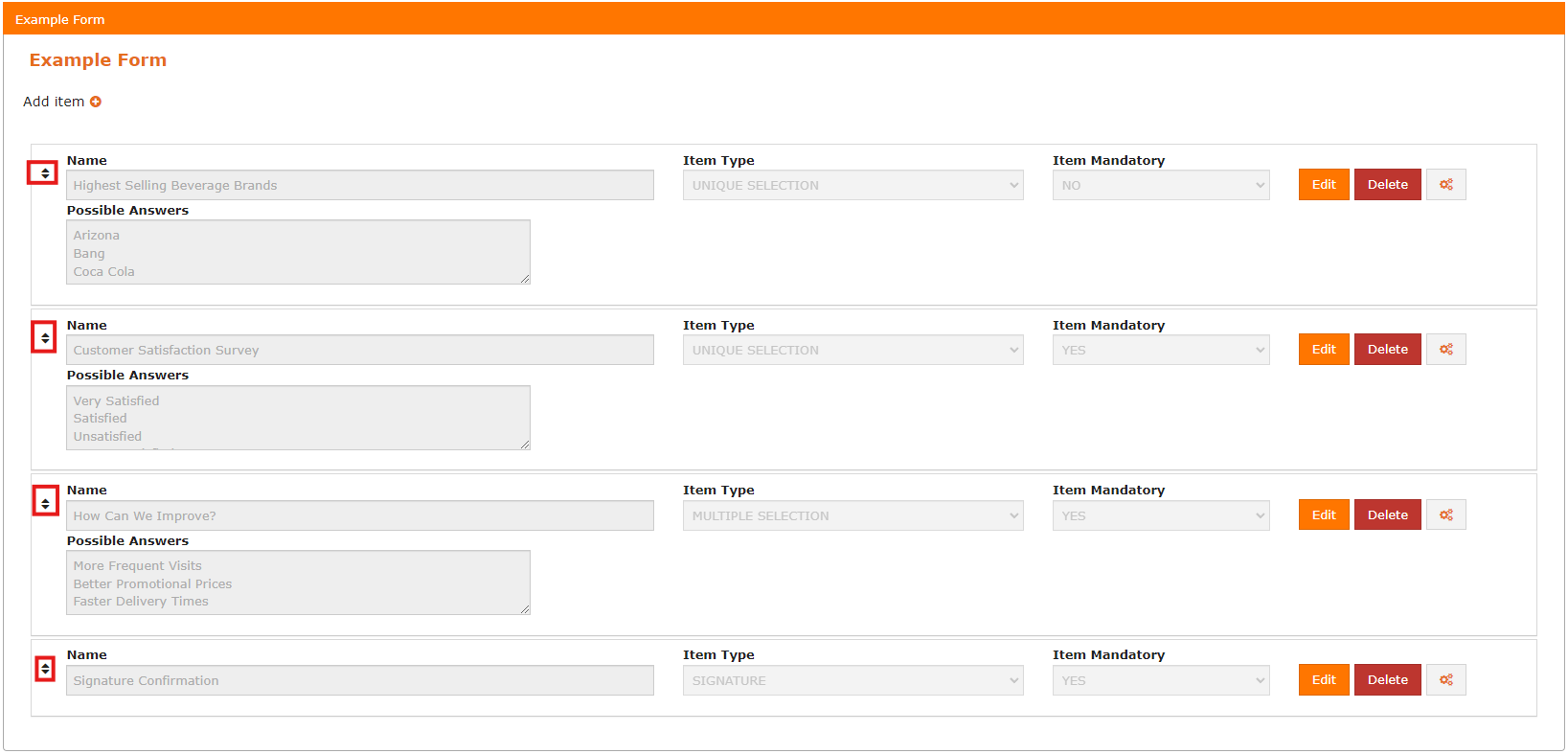
After adding each Form section (item) individually, we should now have a more complete Form ready for use by reps. To change the order of any section, click on the directional arrows next to any section, and drag it to the desired spot.

Comments
0 comments
Please sign in to leave a comment.